Configuring WebFOCUS Help
From WebFOCUS Release 9.3.0, help is configured to use Online Help that is hosted by ibi™ on docs.tibco.com. This help configuration is applied for new installations or when you upgrade from an earlier release. The installation package no longer includes the help files. This greatly reduces the size of the installation file and the time required to install and configure the software.
Benefits include:
- Hosted Help model that enables you to access the most current online help content at any time.
- Upgraded delivery model that reduces the size of the product software package, and simplifies installation and configuration.
- Online Help access using a secure connection to the ibi™ server hosting the Online Help system (HTTPS).
Configuring WebFOCUS Client Help to Point to Downloaded Help on an Alternate Remote Server
When you install WebFOCUS, the client is already configured for the ibi™ hosted help site for you. However, if you want to configure a proxy server of your choice instead, you can configure it as follows:
- Start WebFOCUS.
- On the WebFOCUS Hub, from the side navigation pane, select Management Center > Administration Console > Application Contexts.
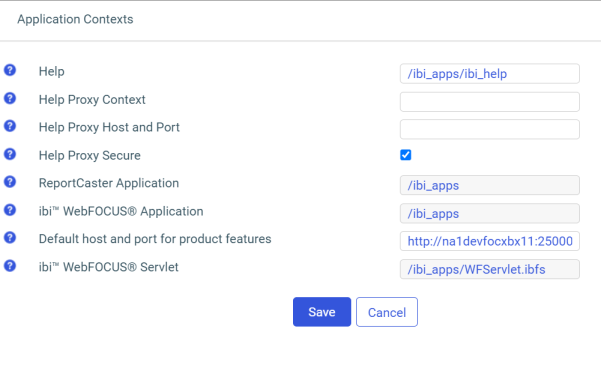
- On the Application
Contexts page of the Administration Console Configuration tab, the
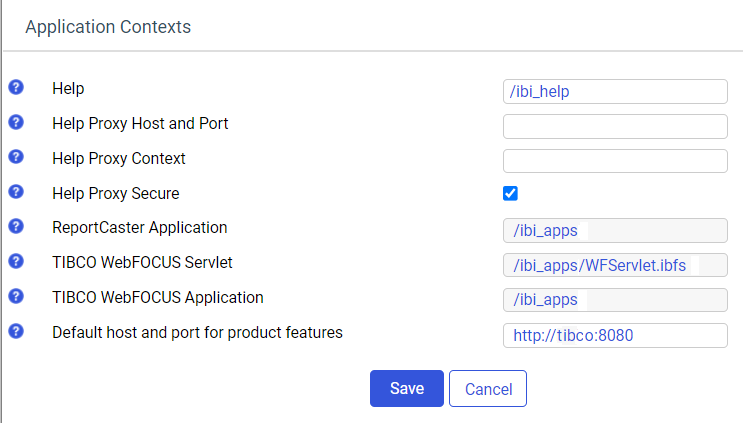
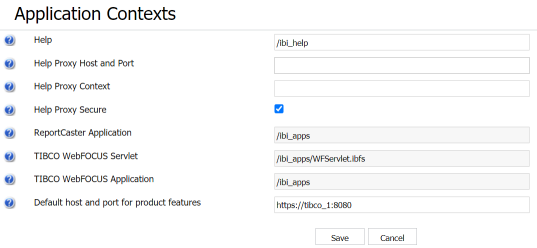
Help Proxy Host and Port and the Help Proxy Context fields have the configured values as shown
in the following image. However, if you want to configure a proxy server of your choice, enter the appropriate values in the Help Proxy Host and Port and Help Proxy Context fields.
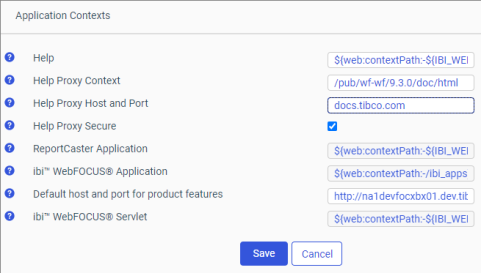
- The Help Proxy Secure checkbox is selected by default because the default remote proxy server configured uses SSL. If you have configured help on your hosted environment and it is secured, ensure that the Help Proxy Secure checkbox remains selected. Otherwise, clear it for an unsecured connection. Click Save. All the calls are directed from WebFOCUS Client to the remote Help host from where you can access help.
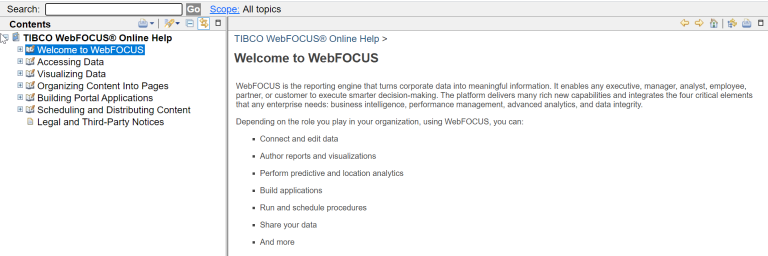
To open the help, click the Help
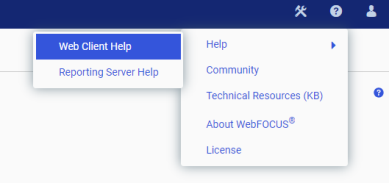
 icon at the top right and select Help. From the context menu that opens, select either Web Client Help or Reporting Server Help. The corresponding help is displayed in a new browser window.