Adding and Configuring Activities
An activity is an individual unit of work in a process. Each activity is represented by an icon in TIBCO Business Studio and consists of a set of configurations.
Procedure
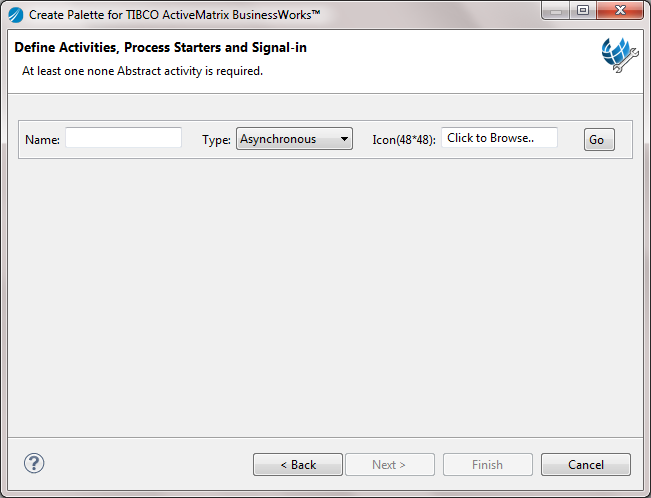
- In the Name field, type a name of the activity that you want to create.
-
By default,
 is used as the activity icon. If you want to change the activity icon, click the text box next to the
Icon field, and select an icon to represent the activity.
The supported image formats are .jpg, .gif, .png, and .jpeg. The size of the icon must be 48x48 or larger. BusinessWorks Plug-in Development Kit automatically generates the icon in size of 16x16, 32x32, and 48x48.
is used as the activity icon. If you want to change the activity icon, click the text box next to the
Icon field, and select an icon to represent the activity.
The supported image formats are .jpg, .gif, .png, and .jpeg. The size of the icon must be 48x48 or larger. BusinessWorks Plug-in Development Kit automatically generates the icon in size of 16x16, 32x32, and 48x48.
-
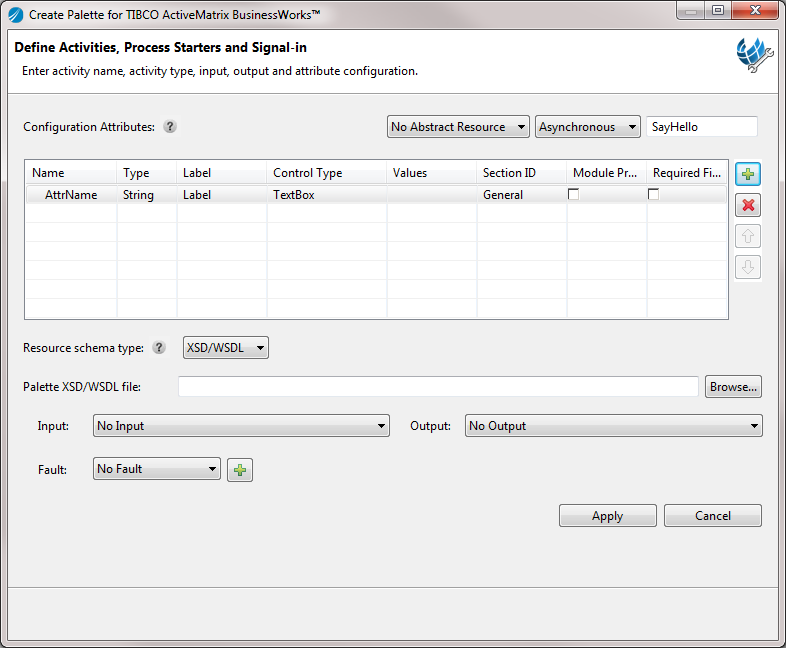
Click
 to add attributes for the activity. Each activity attribute contains the following properties:
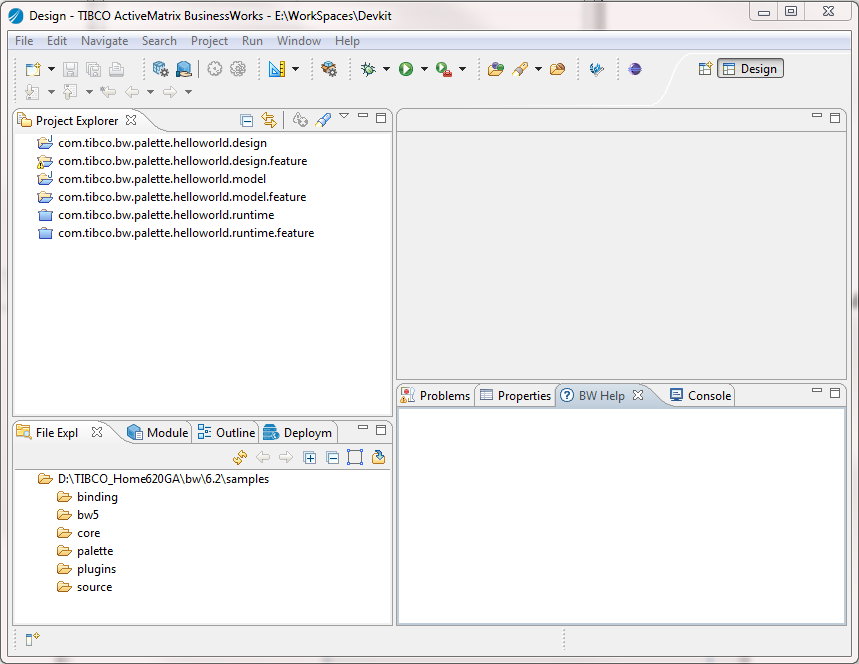
- Click OK when you are prompted to change the target platform to design time during the code generation process.
Copyright © Cloud Software Group, Inc. All Rights Reserved.