
Running the Sample Project
You must configure the TIBCO Cloud AuditSafe Shared Resource Connection packaged in the sample before running the process.
Prerequisites
Procedure
-
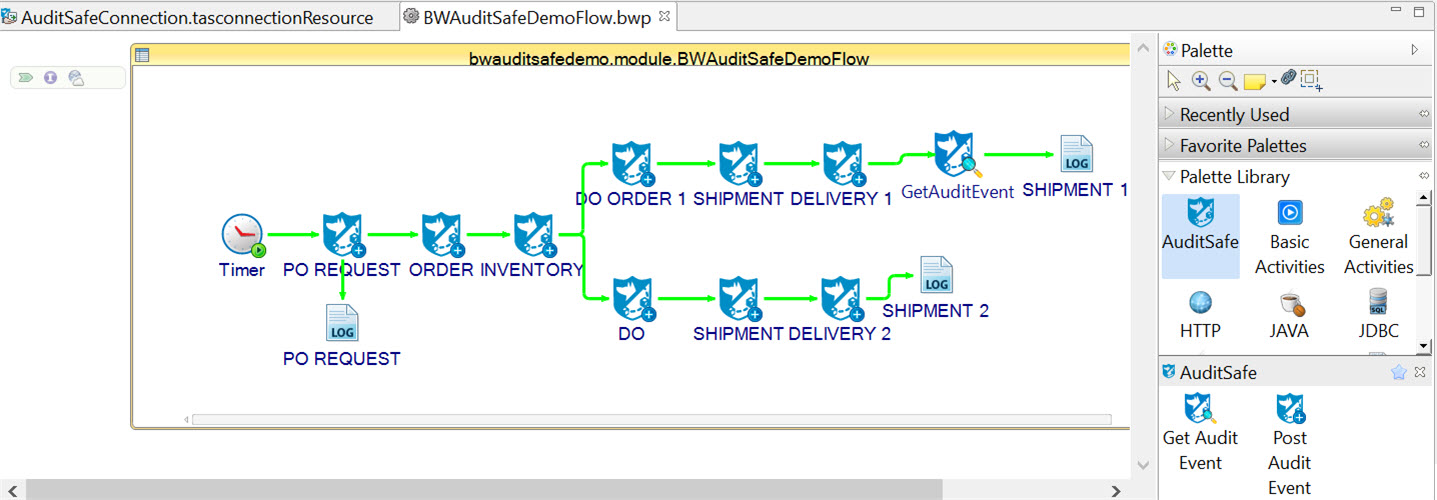
If you want to configure the properties of an activity, click on any one of the activities in the flow, displayed in the
Process Editor and then click on the
Input
tab in the Properties view.
For more details about input fields and output fields of the activities, see Post Audit Event Activity and Get Audit Event Activity.
-
After the process runs successfully, click the
 icon to stop the process in the Console view.
 icon to save your changes after every update.
Result
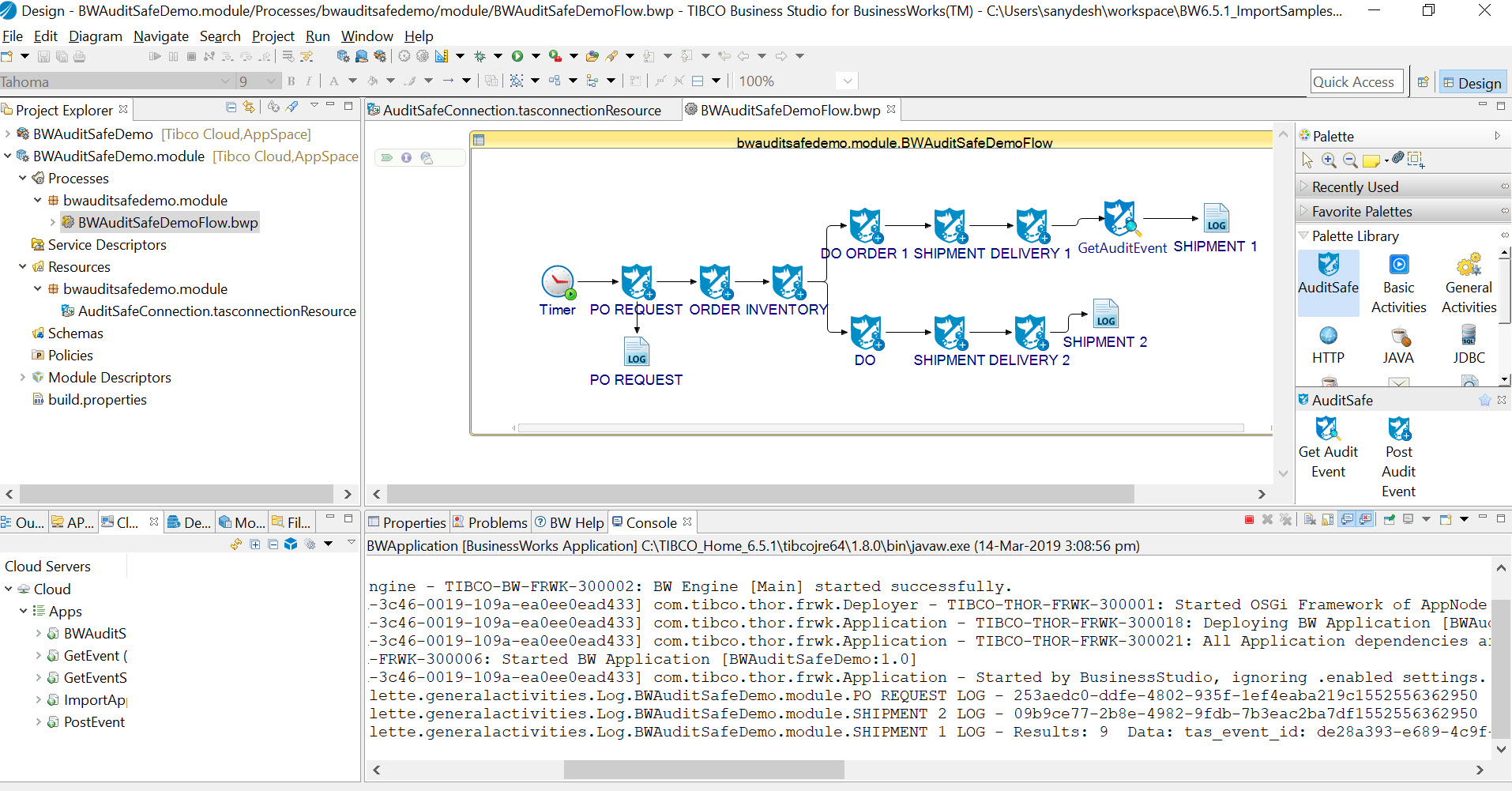
The output of the process run in the Debug mode.
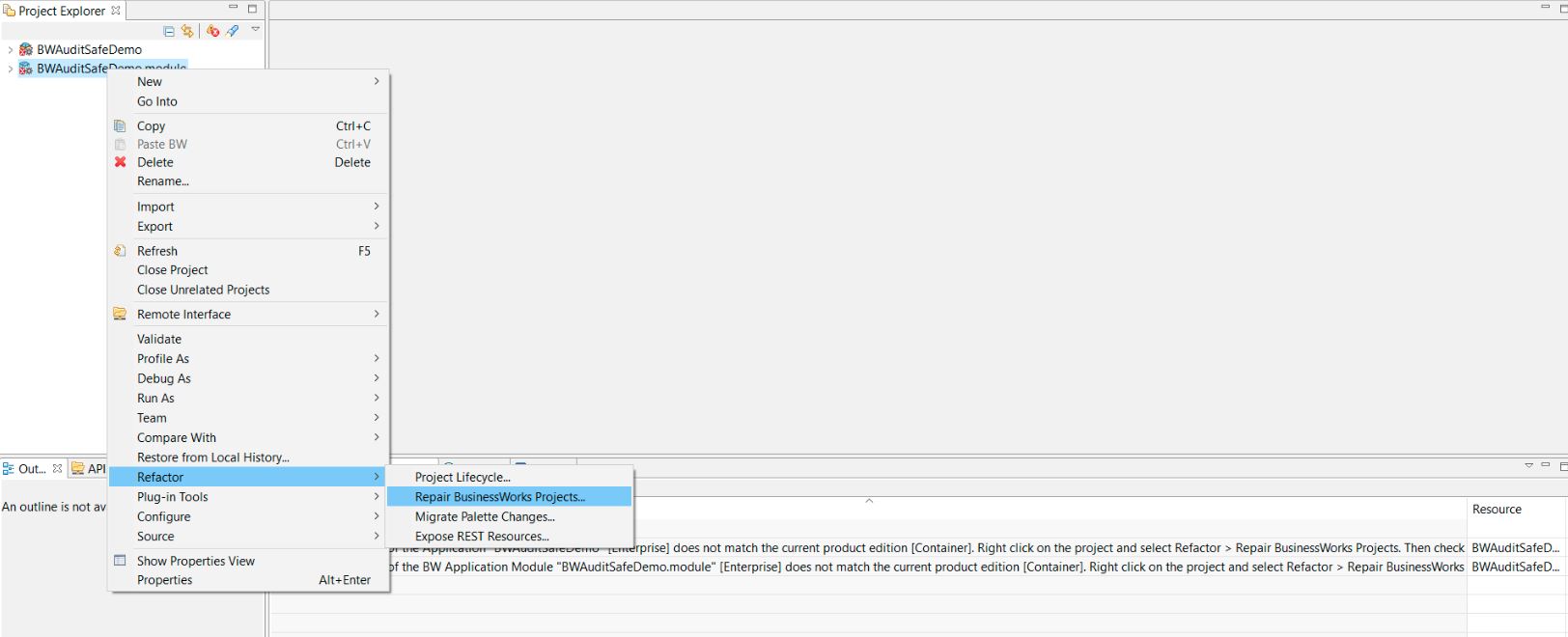
1. Right-click BWAuditSafeDemo.module in the Project Explorer view and then click .
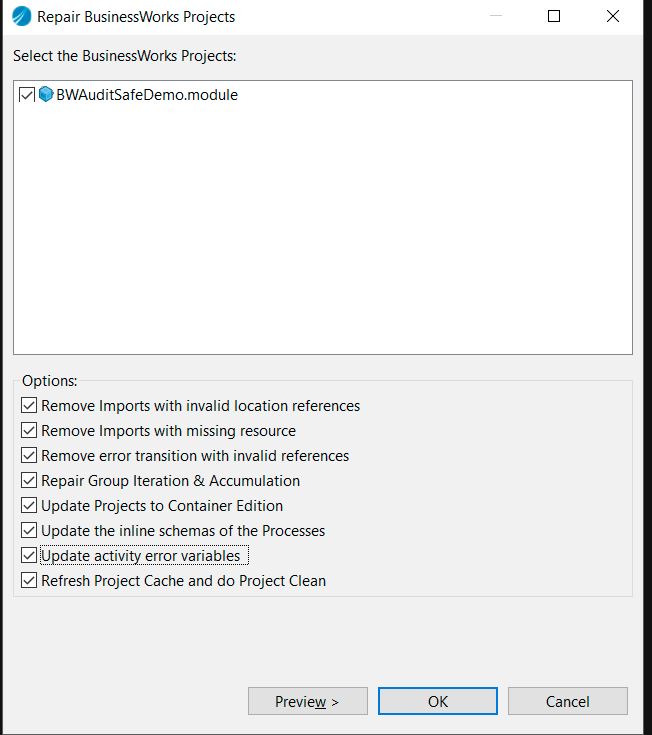
2. Select all the check boxes displayed on the Repair BusinessWorks Projects dialog and then click OK.
3. Repeat the above steps for BWAuditSafeDemo project folder.
Copyright © Cloud Software Group, Inc. All rights reserved.