Spotfire® User Guide

Creating an expression function

You can use the Expression Function dialog (reached from Data Function Properties) to register a function in the Spotfire expression language that is based on Spotfire® Enterprise Runtime for R (a/k/a TERR™). Once an expression function has been created, it is automatically available as any other function in the Spotfire expression language, within the current analysis.

Before you begin

Expression functions can only be added using the installed client. See Authoring data functions, Registering a data function and the Spotfire Enterprise Runtime for R language reference for more information about how to work with TERR.

Procedure

  1. On the menu bar, select Data > Data function properties.
  2. Click the Expression Functions tab.
  3. Click New.
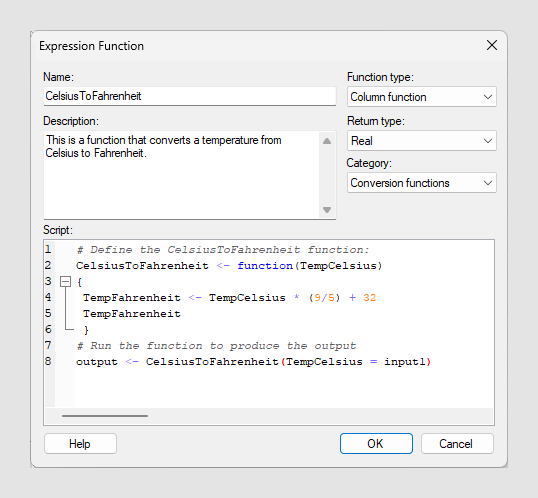
  4. In the Expression Function dialog, add a Name and a Description.
    These will be shown when browsing the function list (for example when adding a calculated column or a custom expression).
  5. Select a Function type, a Return type and a Category.
    The Function type specifies whether the new expression function should be a column function or an aggregation function. A Column function returns the same number of rows as the input, whereas an Aggregation function aggregates the input values into a single output value.

    The Return type specifies the Spotfire data type that the script should return.

    The Category determines where in the function list to place the function. A proper categorization of the functions may make them easier to find when working with them in expressions.

  6. Define your Script based on TERR.


    For example:
    # Define the CelsiusToFahrenheit function:
    CelsiusToFahrenheit <- function(TempCelsius)
    {
     TempFahrenheit <- TempCelsius * (9/5) + 32
     TempFahrenheit
     }
    # Run the function to produce the output
    output <- CelsiusToFahrenheit(TempCelsius = input1)
    For column functions the script should return the same number of rows as the input, whereas for an aggregation function the script should aggregate the input values into a single output value. The output must be placed in a variable called output.
    Note: Make sure that the output from the script matches the selected return type. For example, the script in the example will produce a Real value, hence, Real should be selected as the return type.
  7. Click OK.

Results

The expression function is added to the analysis.
Tip: You can edit or delete previously added expression from the Data Function Properties dialog.