Overview of column elements in Information Designer
Column elements in an information link can refer to multiple tables in different databases. However, with Information Designer, columns are represented as if they were located in the same spreadsheet, regardless of the physical location of the data.
In a Spotfire context, columns are entities that can be assigned to the axes of a visualization. For example, data from a fruit company may include fruit type, sales and cost.
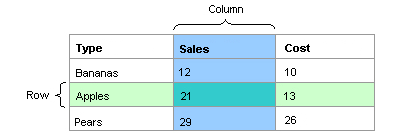
All information in a relational database is represented explicitly as values in tables, composed of rows (records) and columns (fields).
Column elements created in Information Designer can be based on several database columns. For example, a column element can be calculated as the sum of the values in two different columns. The underlying columns can reside in the same database table, in different tables, or even on different databases.
Columns can be defined with built-in column filters that are automatically applied when the column is retrieved. You can also add a personalized or a parameterized column filter condition that limits data depending on the currently logged in user, see Personalized information links and Parameterized information links. Columns can also be set up to include aggregated data.
In Information Designer, columns are represented by these icons:
| Icon | Description |
|---|---|

|
Real, SingleReal or Currency column |

|
Integer or LongInteger column |

|
String column |

|
Boolean column |

|
Date column |

|
DateTime column |

|
Time column |

|
BLOB (binary large object) column |

|
CLOB (character large object) column |

|
Unknown column (in the Data Sources tree only). Must be set manually to one of the accepted column types (above) before it can be saved as a column element. |