Mapping Transformations
After selecting a data source and target, you can create mappings to transform your data in the following ways:
- Map the columns of the source, or combinations of columns in the source, to columns in the data target.
- Convert the extract data into the form necessary for the data target.
- Create a temporary
column for mapping.
Note: You can create a temporary column within the mapping step to add intermediate calculations that are not part of the original SQL command or target data. This is often useful for complex calculations that are actually composed of multiple expressions. Creating a temporary column makes the transformation easier to understand and support. It is also helpful in performing data type conversions when multiple steps are required.
There are three methods for mapping columns:
- Automapping. Automatically maps columns with the same name.
- Simple mapping. Maps one column in the source to one in the target.
- Complex mapping. Builds
expressions.
Note: The target column format should be at least as large as the source column format, but you can adjust the transformation to accommodate different format sizes.
Considerations for Mapping to an Existing Fixed Format File
While you can map to an existing fixed format file, there are some considerations that should be taken into account.
- Fixed Format files do not have all of the options for loading data into the target that other data types do (for example, key matching logic).
- ibi Data Migrator respects the data types described in the synonym of the fixed format file. For example, if the synonym describes numeric columns in integer format, data will be written to the file in that format.
- If a file already exists with the specified name, ibi Data Migrator will append data to that file, unless you select the Prior to Load option of Delete File. Existing data in a fixed format file cannot be updated.
Automatically Map All Columns
- Procedure
- On the Home tab, in the Tools group, click Options.
- Expand Data Flow and select Data Flow Designer from the User Preferences tree.
- Select the Automatically map all columns checkbox in the On Add Target section.
- Click OK.
Map Transformations
- Procedure
- From the
data flow workspace, double-click a target, or right-click it and
click Target Transformations.
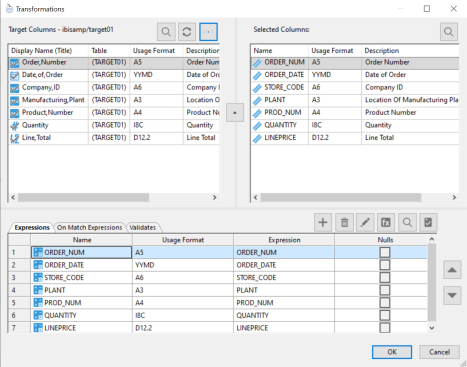
The Transformations dialog opens, as shown in the following image.
- To map
columns with identical names, click the AutoMap button
 .
.
The mapping will appear in the grid under the Expressions tab.
- To map
columns with different names, select one column from each grid and
click the equal sign.
The mapping will appear in the grid under the Expressions tab, with the Selected Column appearing in the Transform Expression box.
- To create a complex mapping for a target column, double-click a column to move it to the Expressions tab.
- Click
the Edit Transforms button.
The Transformation Calculator opens.
- Create
an expression using the Columns/Variables and Functions tabs, and
the calculator buttons. For details on using the Transformation
Calculator, see Transformation Calculator. For information about using functions, see Using Functions.
For information about using variables, see Using Variables in a Flow.
Note: When you create expressions, keep in mind their order of evaluation. For details, see Order of Evaluation.
- Click OK.
The new mapping will appear in the grid under the Expressions tab.
Create a Temporary Column for Mapping
- Procedure
- In the
data flow workspace, double-click a target, or right-click it and
click Target Transformations.
The Transformations dialog opens.
- Click
the Insert Intermediate Transforms button.
The Transformation Calculator opens.
- Type a name and type or select a format for the column.
- Create
an expression using the Columns/Variables and Functions tabs and
the calculator buttons. For details on using the Transformation
Calculator, see Transformation Calculator. For information about using functions, see Using Functions.
For information about using variables, see Using Variables in a Flow.
Note: When you create expressions, keep in mind their order of evaluation. For details, see Order of Evaluation.
- Click OK.
The new mapping will appear in the grid under the Expressions tab.
The new mapping is now available as a column in the Transformation Calculator, and can be used to create a complex expression.
Create a Target Transformation Using Relational Lookups
The DB_LOOKUP function allows you to build data flows that perform lookups into multiple tables using target transformations instead of explicit joins. This approach can simplify flows that require lookup values from numerous tables. For information about using the DB_LOOKUP function to create source transformations, see Using Lookups to Create Multi-Table Flows Without Joins.
- Procedure
- From
the data flow workspace, double-click a target object, or right-click
it and click Target Transformations.
The Transformations dialog opens.
- Double-click the column that will use the lookup. The column is moved to the grid under the Expressions tab.
- With
the column selected in the Expressions grid, click the Edit
Transforms button.
The Transformation Calculator opens.
- Click
the Functions tab, expand the Data
Source and Decoding - Simplified folder, and double-click the DB_LOOKUP function.
The prototype for DB_LOOKUP appears in the Expression window and the DB_LOOKUP dialog opens.
- Select
a synonym to use for the lookup by clicking the ellipsis (...) after the Lookup
Synonym field.
The Select Synonym dialog opens.
- Select a synonym and click Select.
- From the Lookup dialog, click the Add/Delete button.
- A lookup
is similar to a join in that it uses columns from two different tables.
Select a column from the Source and Lookup Fields lists, and click
the equal sign (=).
Note: If you have Automatically add join conditions checked in the Data Management section of the Options dialog, the Lookup is added automatically, since both data sources have a column with the same name and format, and that column is a key column in the lookup table.
- Select the value to return from the lookup from the Return Field dropdown menu.
- Select the original column name and click OK. Note that in this case, the format of the column is A20.
- Click OK.
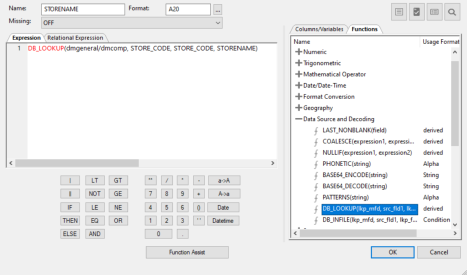
The expression is completed in the Transformation Calculator dialog.
The Transformation Calculator should now look like this.
- Click OK.
The target transformation is added to the Transformations dialog.
- Click OK to close the Transformations dialog.
Edit a Transformation Mapping
From the Transformations dialog:
- Procedure
- Double-click
the column number or name in the Expressions tab.
or
Select the column name in the Expressions tab and click the Edit Transforms button.
The Transformation Calculator opens.
- Modify
the expression.
Note: You can use the Function Assist button to change the parameters of a transformation that uses the DB_LOOKUP function.
- When you are finished with your changes click OK.
You can also double-click the Expression field in the Expressions tab, and enter the expression directly.
Adjust a Transformation Mapping
If the format of the target column is smaller than the format of the source column, the transformation mapping will fail. For example, moving a column formatted as A24 into a column formatted as A10 will fail because you cannot move 24 characters into a 10-character field. To solve this problem, you would need to use edit or substring in a transform expression.
The Transformations dialog provides an option for automatically adjusting the transformation to reconcile different format sizes. Adjust will also convert integer, alphanumeric, and datetime source columns so that they match the target column.
In the Transformations dialog:
- Procedure
- Map
the source and target columns by selecting one from each list and
clicking the equal sign.
The mapping appears in the Expressions list.
- With
the expression highlighted, click the Adjust Expression button
 .
.
Add Comments to a Transformation
- Procedure
- Right-click the title bar under the Expression tab in the Transformations dialog.
- Point to Customize from the shortcut menu and then click Description.
The Transformations dialog now shows a Description column. Here you can enter a comment for the transformation that is stored in the flow.
Test Mappings
From the Transformations dialog:
- Procedure
- Click
the Test Transforms
 button.
The Test Transformations dialog opens with sample data for the transformations.
- Click the Close button.
Transformations dialog
To access the Transformations dialog from the data flow workspace, double-click a target, or right-click a target and click Target Transformations.
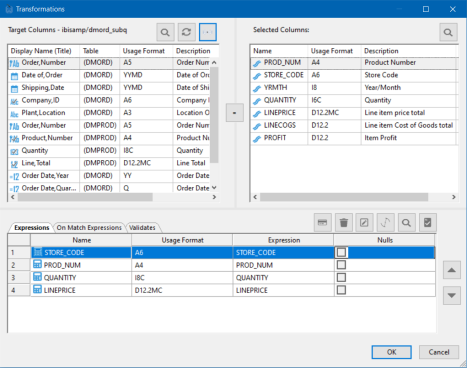
The Transformations dialog contains the following fields and options:
Allows you to search for a column.
 Refresh
Refreshes the columns in the target.
Automap
Maps all columns with identical names.
Lists the columns in the data target.
Lists the columns in the data source.
Establishes the relationship between the selected columns as equal.

 Insert Intermediate Transforms
Inserts a new mapping and opens the Transformation Calculator.
 Delete
Deletes a selected mapping.
 Edit Transforms
Opens the Transformation Calculator to edit the selected mapping.
 Adjust Expressions
Adjusts the transformation expression to reconcile different format sizes.
Lists the transformation mappings. To access the context menu with available options for the transformations, right-click a transformation in this tab. For more information, see Source Transformations Shortcut Menu.
Lists the expressions that are performed for rows that are updated. This tab is not available if Optimize Load is enabled in the flow properties.
Lists transformations that screen records as they are loaded into the data target. If a record does not meet the criteria, it is rejected. This tab is not available if Optimize Load is enabled in the flow properties.
 Test transforms
Retrieves, by default, 50 records and 4096 characters per row from the source, and applies all available transformations. This option enables you to review the data being moved and to ensure that the syntax of each transformation is correct. No duplicate processing is performed. For example, if a key value is duplicated, a unique constraint violation may occur. Similarly, if a value is missing for a column described as not null, a constraint violation will occur at run time.
If there are any errors, the Server Messages window displays an error message and marks the incorrect transformation in red.
Move the selected mapping to change the order of the transformations.
View Error Details
Error details for transformations can be viewed in the ibi Data Migrator desktop interface. If an error is made, the transform will appear in red.
- Procedure
- Right-click the error and select Error Details.
- The Error(s)
Details dialog opens.
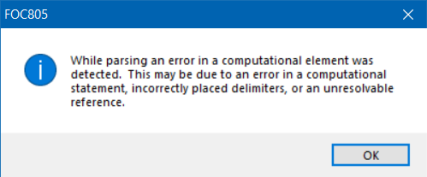
To see the error message details, click the error message number. A window opens explaining the error, as seen in the following image.
- Click OK.
Note: This method of viewing error details also applies to target transformations.
Validating Records
You can create a business rule that screens records as they are loaded into the data target. If a record does not meet the criteria, it is rejected.
If a value meets the criteria of the rule, a value of 1 is assigned to the record and the record is loaded. If the value does not meet the criteria of the record, the value of 0 is assigned to the record and the record is rejected.
Validate Records
- Procedure
- In the Transformations dialog, select the Validates tab.
- Click
the Insert Intermediate Transforms button .
The Transformation Calculator opens with a name and format already provided.
- Optionally, enter a name for the validation rule in the Column field.
- Create
an expression for the validation rule using the Columns, Functions,
and Variables tabs, and the calculator buttons.
If the expression evaluates to TRUE then the row is loaded in the target table. If the expression evaluates to FALSE then the row is rejected as invalid.
Note that the validation is performed after any filters or aggregation. For example, if you enter QUANTITY GT 10, only records where the sum of the values of QUANTITY for the group by fields is greater than 10 will be loaded.
The count of rejected rows is reported in the ibi Data Migrator log as invalid records. These records can also be logged to a file for review. For more information, see Transformation Calculator.
- Click OK.
The validation rule appears in the grid below the Validates tab.