Administering JMS Providers and Destinations
There are two ways that you can add or amend JMS providers and queues in the iProcess Engine database:
|
•
|
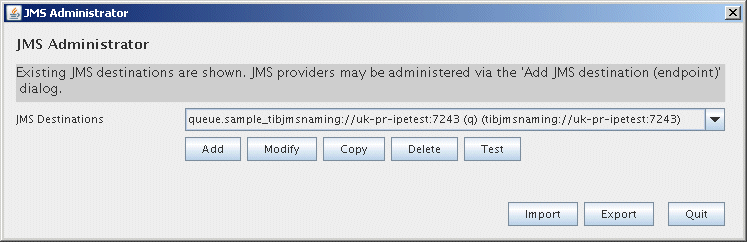
Using the JMS Administration Utility. To access the JMS Administration Utility: |
|
—
|
From UNIX, navigate to the $SWDIR/jmsadmin directory and enter the following command: |
jmsadmin.sh
|
—
|
From Windows, click Start > TIBCO iProcess Server (Windows) > JMS Administration Utility. |
Note:
You can choose the appearance of the JMS Administrator dialog, so that it is compatible with other dialogs used on your system. Not all appearances are available on all platforms. To specify the appearance of the JMS Administrator, use the look_and_feel property in the jmsdb.properties file. This gives you the following options:
|
—
|
Metal (this is the default value) |
|
—
|
Windows (only available on Windows) |
|
—
|
Windows Classic (only available on Windows) |
|
•
|
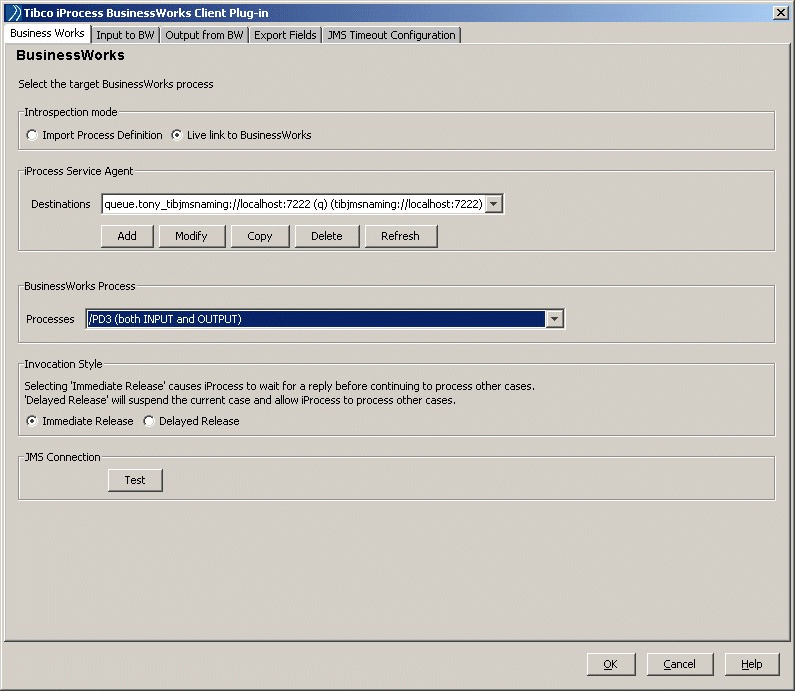
Using the BusinessWorks Step Definition dialog. You can use the Add, Modify, Copy or Delete buttons from the iProcess Service Agent area of the BusinessWorks Step Definition dialog when you are defining an iProcess BusinessWorks step in an iProcess Engine procedure. |
Whether you choose to configure the JMS provider information using the JMS Administration Tool or from the BusinessWorks Step Definition wizard, the dialogs are the same. The following section describes how to configure these dialogs in more detail. See Managing JMS Destinations and Managing JMS Providers for more information.
You can also export and import your JMS provider configuration information from one iProcess Engine database to another using the JMS Administration Tool. This is useful, for example, if you want to migrate your iProcess Engine environment from a Development environment to a Production environment. See Importing and Exporting JMS Configuration Information from the iProcess Engine Database.