If you have a Google Analytics account, you can access and
analyze data from Google Analytics in Spotfire.
Before you begin
You must have access
to a Google Analytics account.
The Google Analytics connector must be enabled
for use in web clients. For instructions on how do this, see the topic
Enabling Google Connectors in Spotfire Web Clients in the
Spotfire® Analyst User Guide.
Procedure
-
On the authoring bar, click
Files and data
 .
.
-
In the Files and data flyout, click
Connect to and, depending on the project you
want to access, select one of the following options:
- To access a
project with Google Analytics 4 data, select
Google Analytics.
- To access a
project with Universal Analytics data, select
Google Analytics (Universal Analytics).
-
In the Google Analytics flyout, click
New connection.
- You might have
access to shared connections to Google Analytics in the library, which you can
open to access a prepared selection of data from the external data source.
Shared connections are listed under
In library. If you access data from a shared
connection, you just log in and click OK.
-
Follow the login instructions in the dialogs that are displayed.
That is, choose or add an account, provide credentials when necessary, and
allow access.
-
In the next dialog that is displayed, select which Google
Analytics view you want to load data from.
The selected view will become a data table in Spotfire.
-
Click
Continue.
-
In the left part of the dialog, all the metrics and dimensions are
grouped together in categories. Click on the plus sign next to the category
name to expand a category and see the metrics and dimensions.
-
Select the metrics and dimensions of interest.
Note: When you access
Universal Analytics data, you can select a maximum of 10 metrics and 7
dimensions. For Google Analytics 4 data, the maximum is 10 metrics and 9
dimensions. This is due to a limitation in Google Analytics. Note that some
combinations of metrics and dimensions will not be valid. For the latest
information about which combinations are valid, see the official documentation
for Google Analytics.
The selected metrics and dimensions are added to the list
to the right in the dialog.
-
Optionally, you can change what
Segment to load data for. By default, the
segment
All Users is selected.
System segments are segments that are
available to all users of the same account.
Custom segments are segments that have been
defined by yourself or your company.
Note: It is not possible to select segments when you access data from
a Google Analytics 4 project.
-
Optionally, you can change what
Date range to load data for.
By default, the predefined range
Last 30 days is selected, but you can change
to another predefined range, specify your own range, or select to
Let the end user specify range.
-
Click
OK.
The selected data is added to the summary view in the
flyout.
-
In the flyout, you can change the name of the new data table.
Click
OK when you are satisfied.
The selected metrics and dimensions are loaded into
Spotfire.
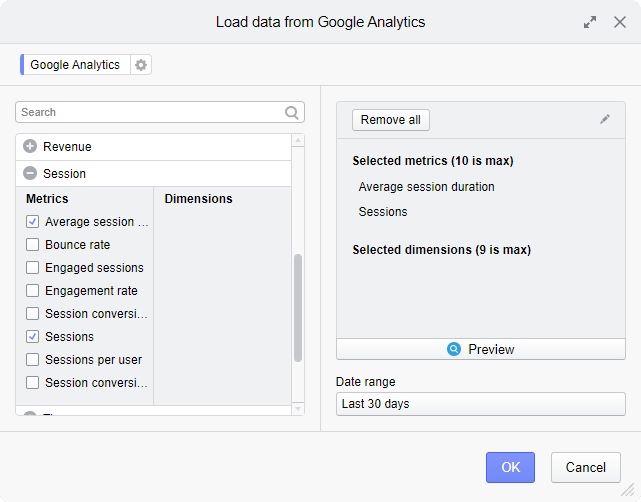
The Load data from
Google Analytics dialog
In this example, data will be loaded from My Account > My Property
> My View 1. This data will become a data table when loaded into Spotfire.
The left side of the dialog shows the available
Metrics and
Dimensions divided into categories. The category
named
Session has been expanded, and two metrics have
been selected,
Sessions and
Avg. Session Duration. In the right part of the
dialog, all the selected metrics and dimensions are listed; in this case four
metrics and five dimensions. Each metric and dimension will become a column in
the new data table. To rename columns, click on the pencil icon. In the lower
right part of the dialog,
All Users has been selected as the
Segment and
Last 30 days as the
Date range.
Tips
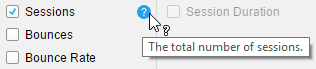
To read a description, point to the question mark next to a metric or
dimension name.
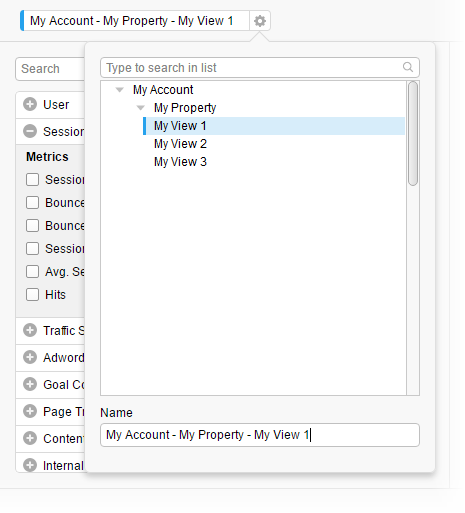
By default, the name of the data table is made up of the names of the
selected account, property, and view. In this example, the name of the data
table is
My Account - My Property - My View 1. To change
the name of the data table, click the settings icon to the right of the name.
In the popover, you can change which view to load data from and you can rename
the data table.
Tip: You can
go back and edit the settings in this dialog from the Data canvas. See
Editing a data connection for more information.
Google Analytics 4 or Universal Analytics
Spotfire supports accessing data from the current generation of
Google Analytics, Google Analytics 4 (GA4), and from the legacy generation,
Universal Analytics (UA). When you create a new data connection, in the
Connect to list, select the data source that
corresponds to your Google Analytics project:
As an administrator, be aware that,
technically, there are separate data connectors for GA4 and UA. This means that
there is a license feature for each connector, which enables you to control
users' access to the connectors. The connectors also have their technical own
names in configuration files, used for enabling and configuring the connectors
in web clients;
GA4Adapter (for GA4) and
GoogleAnalyticsAdapter (for UA).
Tip: If your project looks empty when you try to open it in
Spotfire, the data in the project might be of the other type (UA or GA4). Try
selecting the other Google Analytics data source in the
Connect to list.