Accessing data from Microsoft SharePoint Online
You can connect to and access data from Microsoft SharePoint Online in Spotfire.
Prerequisites
- Visit the Spotfire system requirements page and make sure your version of Spotfire supports accessing data from SharePoint Online.
- You must have access to Microsoft SharePoint Online.
If you are in an on-premises Spotfire environment and you want to use the Spotfire web client, you must configure your web client to be able to access SharePoint Online data:
What SharePoint data can I access in Spotfire?
With the Spotfire connector for Microsoft SharePoint Online, you can access data from lists available in your SharePoint Online sites.
SharePoint Online is Microsoft's cloud-based version of SharePoint. A list in SharePoint is a way to collect and organize information, in a format much like a table. Information from many apps on a SharePoint site, such as calendars and announcements, is stored as lists and that's how you can access that data in Spotfire.
On-premises versions of SharePoint are not supported. Data from sources other than lists, such as files or document libraries, are not supported.
For more information, see Connector for Microsoft SharePoint Online – Features and settings.
Creating a new connection to SharePoint Online
About this task
Procedure
-
Open the Files and data
 flyout and click
Connect to.
flyout and click
Connect to.
Troubleshooting: Need admin approval
Certain settings in your organization's Microsoft Azure AD (Active Directory) environment might mean that an administrator has to help you to grant Spotfire permission to access your SharePoint Online data.
If this is the case, you might see the following prompt which says Need admin approval.
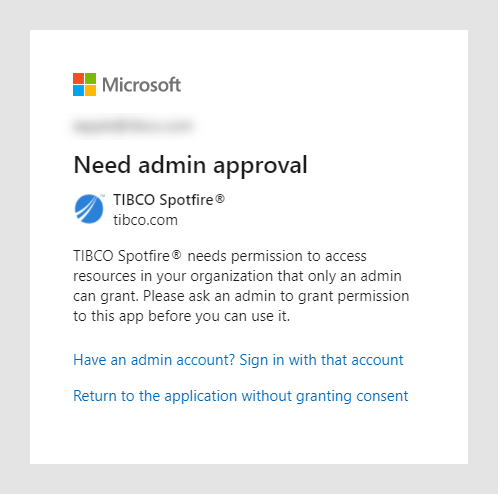
For more information about what you can do, when you face this issue, see Allowing access for the Spotfire app in Microsoft Azure.
Adding and accessing data from more sites
About this task
When you sign in with Microsoft, Spotfire automatically finds the root site of your organization in SharePoint Online. You can see the root site in the list of Top-level sites, and you can access lists from the root site and any of its subsites you have access to.
You can add more sites in the list of Top-level sites, so that you can access lists from sites other than your organization's root site. You can add any site as a top-level site, even a subsite far down in the site hierarchy. Then you can access lists from that site and its subsites.
Procedure
-
In the
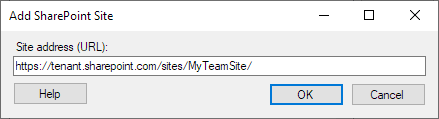
Add SharePoint Site dialog, enter the
Site address (URL) of the site that you want
to add.
Results
- If you do not have direct access to your organization's root site. In that case, Spotfire cannot list any sites automatically. Manually add any subsites that you have access to as top-level sites.
- If you have access to other sites that are not hierarchically located under your root site. Team sites for example are also located on the top level and not under the root site. To access data from such a site and its subsites, add it manually as a top-level site.
Selecting choice columns with multiple selections (multiple-choice columns)
About this task
If a SharePoint list contains choice columns with Allow multiple selections (multiple-choice columns) enabled, those columns are displayed as separate database tables in the Views in Connection dialog.
You can relate and join a multiple-choice column with its parent data to create a single data table in Spotfire. To do this, you use the Add related tables functionality. Note that you must first add the database table for the multiple-choice column, and then join it with the full list.
Procedure
- When you select data in the Views in Connection dialog, in the list of Available tables in database, double-click to add the table of the multiple-choice column that you want to add.
- In the Views in connection list, right-click the multiple-choice column table, and select Add related tables.
Results
When you add and join lists with multiple-choice columns, Spotfire flattens the final data table. The result is a data table with repeated values in columns. That means that when a cell in the multiple-choice column contains more than one value, it is flattened into separate rows for each value.
See the example below. The column 'Cities previously lived in' is a multiple-choice column, with more than one value per row. In the resulting flattened data table in Spotfire, you get rows with repeated values, one row per value:

You can only join one multiple-choice column at a time with its parent list. If you have more multiple-choice columns in the same list, you must add and join each multiple-choice column with the parent list separately. This means you will have a separate joined table for each multiple-choice column that you want to add this way.
Metadata columns from SharePoint Online
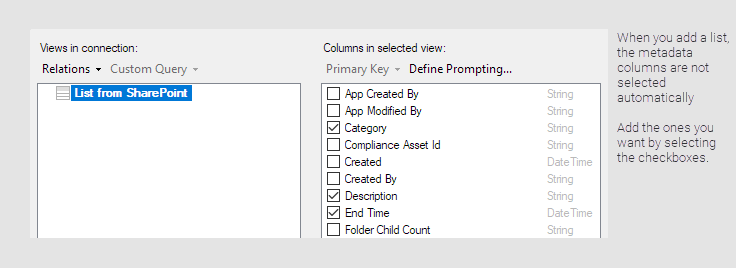
Lists in SharePoint Online include many columns with metadata. The metadata columns cover information like who created an item and when the item was last modified. You might not be used to seeing all the metadata columns when you work your lists in SharePoint Online, but in Spotfire you can include them in the data table like any other column.
To make it easier to select only the metadata columns you are interested in, the metadata columns are not selected automatically when you select a list in the Views in Connection dialog. To add columns, select the columns you want in the Columns in selected view panel.
Working with data from SharePoint Online in a Spotfire analysis
When you have selected your list data in the connection and added it as data tables in a Spotfire analysis, you can start to work with and analyze the data. The following are some useful tips and information specifically about working with data from a SharePoint Online connection in Spotfire.
- Marking many items with on-demand data
- When you use the load method on-demand for SharePoint data, you might sometimes see errors when you mark many items in visualizations. With the load method on-demand, Spotfire sends queries for data to SharePoint Online based on what you do in the analysis. Marking large numbers of items in visualizations can result in complex and long queries that will sometimes not succeed in SharePoint Online.
- Use indexed columns as parameters for prompting and on-demand data
-
When you use prompts or the load method on-demand for SharePoint data, use a column that is indexed as the parameter for filtering the data. Using columns that are indexed in the SharePoint list can often improve performance.
Avoid using a column that is not indexed as the parameter. If the parameter is a non-indexed column, performance can be slower or you might see error messages from SharePoint Online. The error message can look like this:
Error message: Spotfire canceled the request to Microsoft SharePoint Online.

ImportException at Spotfire.Dxp.Data:

Spotfire canceled the request to Microsoft SharePoint Online.

The Microsoft Graph API denied the request too many times because of throttling.