Viewing and managing licenses in your Spotfire environment
You can manage and get an overview of how you have assigned licenses in your Spotfire environment on the Spotfire Server administration pages.
About this task
The product license model (new or legacy licenses) to use in your environment is determined by your current contract. When your commercial agreement is updated to use the new product licenses (Industry Pro, Analytics, Analysis Consumer, Analysis Viewer), you must change the license model in your environment accordingly. See Changing the product license model.
You also have various options for how to show and count licenses in your environment.
Getting an overview on the Groups page
About this task
The Groups page of the Spotfire Server administration pages is your primary way to get a quick overview of licenses. There you can see how many licenses of each type you have assigned to users in your environment, what groups have a certain license, and you can manage each group's licenses and license features.
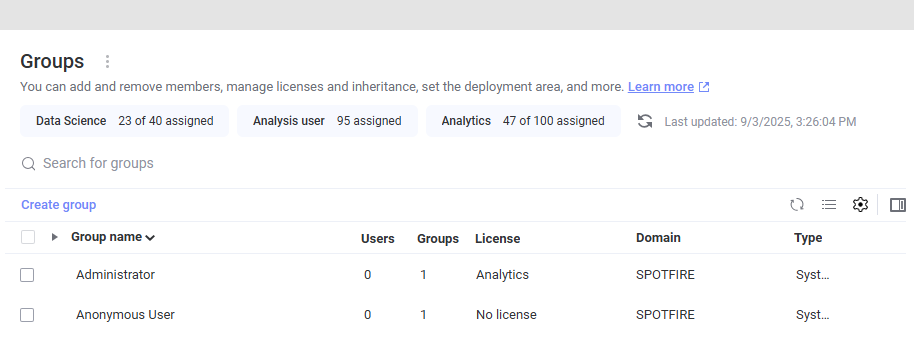
When you view and assign licenses on the Groups page, you see and select the licenses according to the currently configured product license version in your environment. To change between the new and legacy licenses, see Changing the product license model.
Counting the number of licenses assigned with CLI commands
Another way to get a count of the number of named users that are assigned each product license is to use a command-line interface. See Count license features and named-user licenses.
Changing the product license version
About this task
You can configure your Spotfire environment to use either the new or the legacy product licenses. For instructions, see Changing the product license version.
Setting the maximum license assignment
You can add information about how many licenses your contract includes with the CLI command set-named-user-licenses-assignment. Then, in the licenses overview on the Groups page, you can see the maximum license assignment for each license type in relation to how many users you have currently assigned the license.
About this task
Procedure
- On the computer running Spotfire server, open a command-line interface in the directory that contains the file config.bat (config.sh on Linux).
-
With the set-named-user-licenses-assignment command, add the
maximum license assignment information:
- Setting a
maximum number for Analysis Viewer, Analysis Consumer, Analytics and Industry
Pro licenses
config set-named-user-licenses-assignment -v=2 -L"Spotfire.Dxp.AnalysisViewer"=1000 -L"Spotfire.Dxp.AnalysisConsumer"=500 -L"Spotfire.Dxp.Analytics"=100 -L"Spotfire.Dxp.DataScience"=50 - Setting a
maximum number for Consumer, Business Author, Analyst, and Industry Pro
licenses
config set-named-user-licenses-assignment -v=1 -L"Spotfire.Dxp.Consumer"=1000 -L"Spotfire.Dxp.BusinessAuthor"=500 -L"Spotfire.Dxp.Analyst"=100 -L"Spotfire.Dxp.DataScience"=50
- Setting a
maximum number for Analysis Viewer, Analysis Consumer, Analytics and Industry
Pro licenses
Removing obsolete licenses and license features
You can remove obsolete licenses and license features that are not available in any client distributions deployed to your deployment areas.
About this task
If you have a Spotfire environment that you have upgraded from earlier versions, obsolete licenses and license features might have accumulated over time. This can make it difficult to navigate the list when you are assigning license features to groups.