
Creating a Flow Execution Branch
Activities in a flow can have one or more branches specifying conditions. These branches are created from within the activity in the flow. Branching is also supported for Error Handlers in a flow.
Procedure
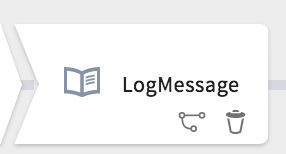
- Hover your mouse over the activity tile to expose the icons adding a branch and deleting the activity in the bottom right of the tile.
-
Click the
Add Branch icon (
 ).
).
Clicking on the == sign in the branch allows you to map a condition for the branch.
-
Continue adding more activities as needed by hovering next to the
 and clicking each successive () button.
 ).
).
Related concepts
Copyright © Cloud Software Group, Inc. All rights reserved.