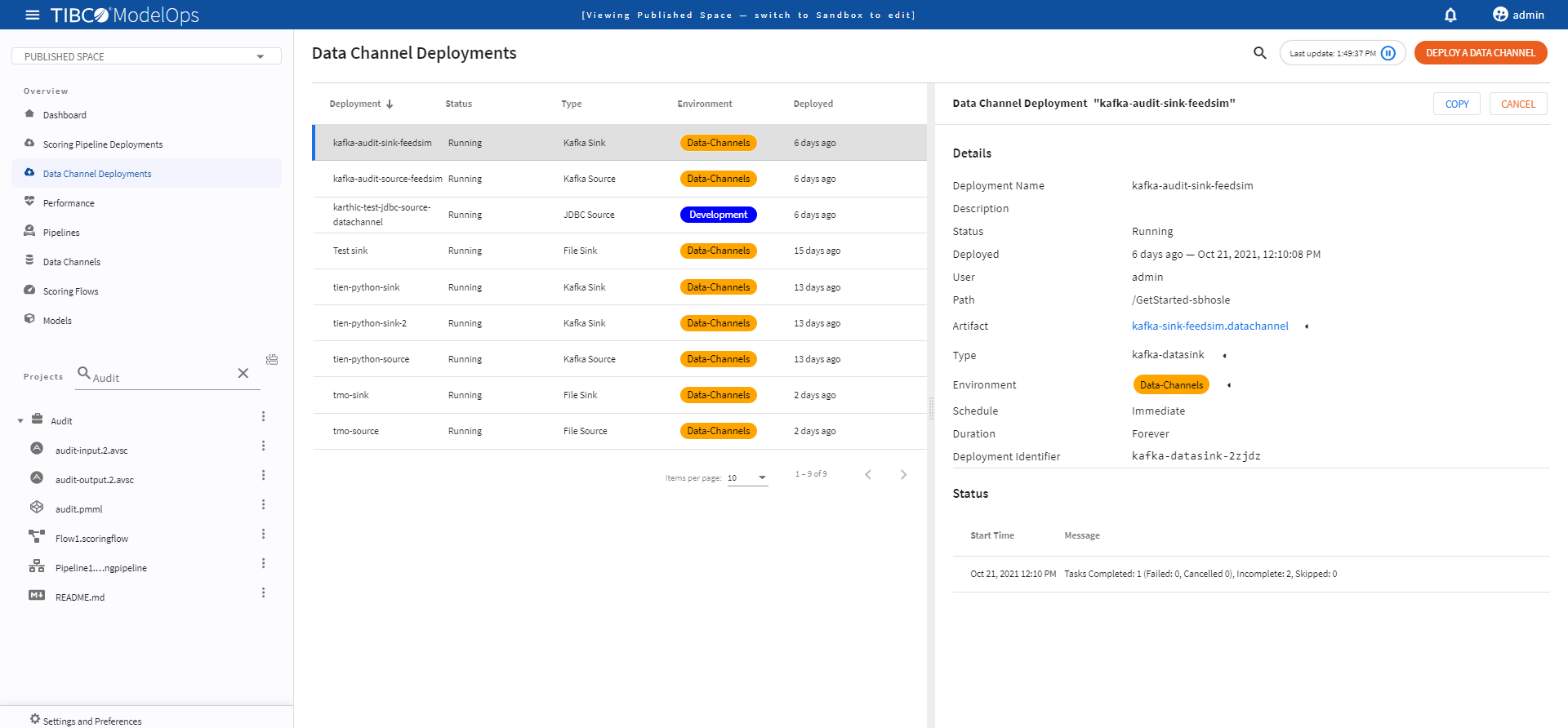
Deploying Scoring Pipeline
Pipeline deployment means scheduling a model artifact containing a specified scoring pipeline to a specified scoring environment.
This page describes how you can:
- Deploy pipelines
- View status for deployed pipelines
Contents
Approving a Scoring Pipeline to an Environment
Before scheduling a pipeline for deployment, it is necessary to approve the scoring pipeline to any environment.
- In the Project Explorer pane, click Pipelines.
- Select the pipeline that needs to be promoted by clicking the check box.
- Click Approve present at the bottom of the pipeline list.

-
Turn on the toggle for appropriate environment and click CLOSE.
Deploying Pipeline
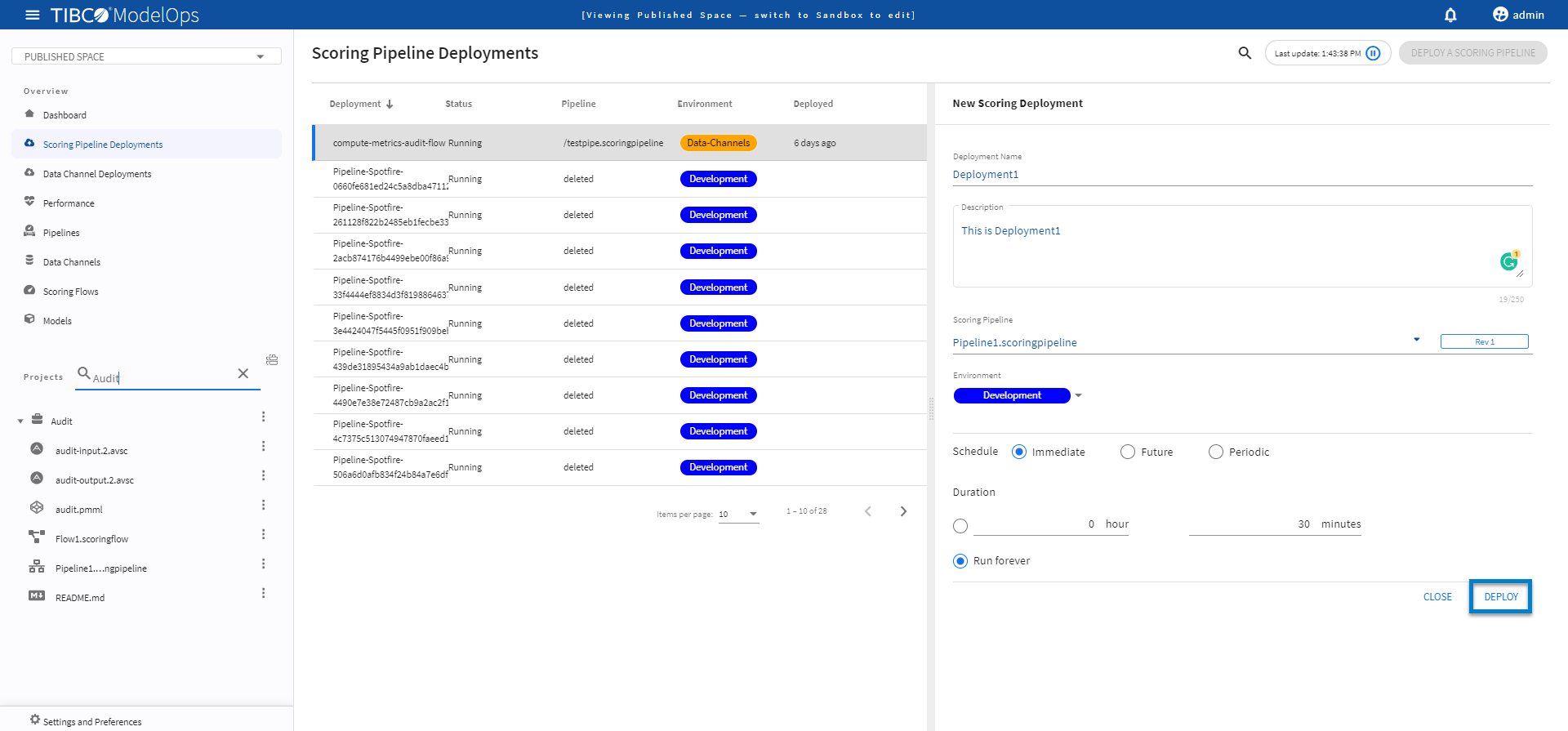
- In the Project Explorer pane, click Scoring Pipeline Deployments.
- Select the DEPLOY A SCORING PIPELINE option.
- Add name and description in the respective field.
- Select scoring pipeline from the drop-down list.
- Select a scoring environment from the drop-down list.
- Select when you need to schedule the job from the given options (Immediate, Future, or Periodic).
- Select the duration for which you need to run the job. You can run the job forever or add the duration as per your needs.
-
Click DEPLOY.
Deploying Multiple Scoring Pipeline Instances
- You can also deploy multiple instances with the same pipelines.
- You can either follow the same steps as mentioned earlier to deploy a new instance with the same pipeline.
- Or, you can duplicate the instance by clicking the duplicate icon.
- Note that even though we are using the same pipeline for deployment, the Deployment name is unique every time.
In addition to this, you can add a new instance by clicking the plus sign (+) and cancel a scheduled pipeline deployment by clicking the minus sign (-).
Viewing Status of Deployed Pipeline
You can view status for deployed pipelines by:
- In the Project Explorer pane, click Scoring Pipeline Deployments.
- A list of deployed pipelines appears here.
- The list is sorted based on the deployed time in ascending order.
- The list shows information such as Deployment name, status of the deployed pipeline, scoring pipeline instance, environment, and time of deployment.
- Additional information is displayed on the right pane after clicking the individual pipeline instance.